AI Usage and Installation
There are two on-ramps. This page covers the Agent Skill — for coding agents with a shell (Claude Code, Cursor, Gemini CLI, …).
No terminal? Use the Claude connector instead — nothing to install
In Claude Desktop, claude.ai, or mobile, go to Settings → Connectors → Add custom connector and paste https://framejs.app/mcp. That's the whole setup — Claude then creates and edits the frames on your framejs account in the conversation. Full connector guide →
Create and edit in AI chat
After installation, simply describe what you want, referencing local files or anything accessible to the agent. Other skills can be combined
> visualize this data in this directoryInstall the framejs Agent Skill (recommended)
One line Install
Installs the framejs skill:
# default install for claude
curl -fsSL https://framejs.io/skill/install.sh | sh# or target another harness — pass its skills directory (see the table below):
curl -fsSL https://framejs.io/skill/install.sh | sh -s -- <SKILLS_DIR>Re-run any time to update. Prefer to do it by hand? Unpack the bundle yourself:
framejs.io ships an Agent Skill — a portable SKILL.md folder that works across ~40 agent harnesses (Claude Code, Gemini CLI, Cursor, opencode, Goose, OpenAI Codex, pi, and more).
| Harness | Skills directory | Notes |
|---|---|---|
| Claude Code | ~/.claude/skills/ (personal) or <project>/.claude/skills/ | docs |
| Cursor | ~/.cursor/skills/ or <project>/.cursor/skills/ | docs |
| Gemini CLI | per Gemini CLI config | docs |
| opencode | per opencode config | docs |
| Goose | per Goose config | docs |
| OpenAI Codex | per Codex config | docs |
| pi | prompt-template / skills config | docs |
Other harnesses: see the Agent Skills client list for each tool's skills directory, then point the one-liner at it.
Use it
Once installed, just describe what you want — the agent activates the skill when the task matches (a chart, plot, dashboard, animation, simulation, or visualizing a data file):
make a bouncing ball animationvisualize ./data.csv as a bar chartModify an existing app by pasting its short URL
framejs.app: (top rightMenu -> Copy frame for AI session)framejs.io:Create expiring snapshot
https://framejs.io/j/<id> make the background whiteUsing an AI chat interface via copy/pasting code
From the component page:
Edit (top right) -> Copy buttonto copy the AI prompt- Paste into Claude, ChatGPT, or any LLM chat interface
- Describe what you want
- Copy the generated JavaScript back into the editor
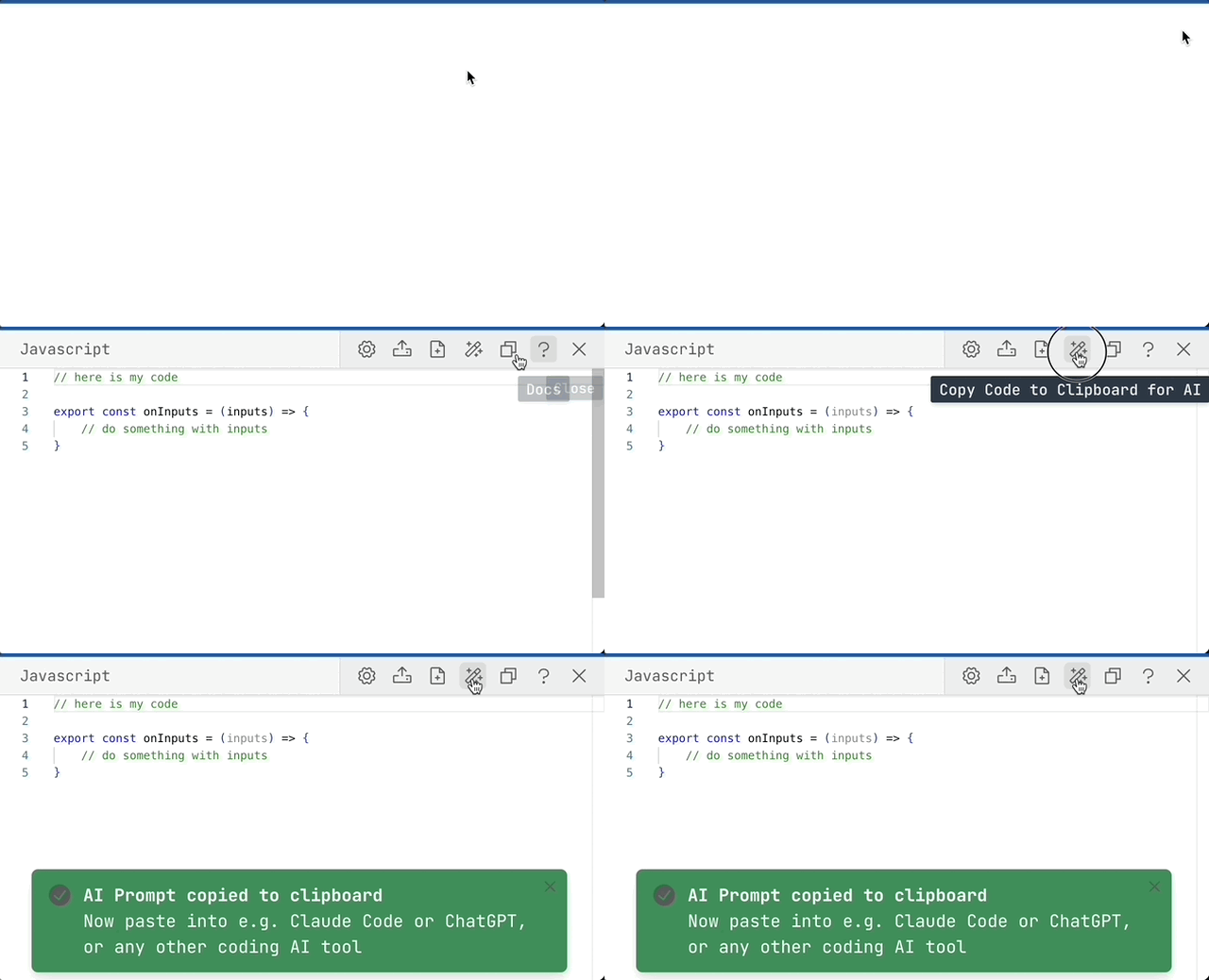
From an AI API
Give the LLM the URL https://framejs.io/llms-prompt.md along with your request. The LLM responds with a JavaScript code block that you paste into the editor at framejs.io.
URL encoding format
The JavaScript is encoded into the URL hash using this scheme:
encodeURIComponent(code) → base64 → URL hash parameterIn JavaScript:
const encoded = btoa(encodeURIComponent(code));
const url = `https://framejs.io/#?js=${encoded}`;
For shareable links, prefer the short-URL API (POST https://framejs.io/api/shorten/json) over long hash URLs — see the skill's short-URL reference.
How it works
A shell-capable agent will:
- Generate the browser JavaScript.
- Create a short URL via
POST https://framejs.io/api/shorten/json(the server handles encoding) and print the resultinghttps://framejs.io/j/<sha256>. - Open it in your browser.
No local files are written — the short URL is standalone and shareable. Every update creates a new short URL.
LLM integration files
All of these are generated from the single source of truth, the framejs skill at worker/static/skill/framejs/, so they never drift:
| File | Purpose |
|---|---|
/skill/framejs/SKILL.md | Portable Agent Skill — combines all use cases, auto-routes by capability |
/llms-prompt.md | AI chat / API — outputs a JavaScript code block |
/llms-claude-code.txt | CLI integration guide (short URLs, file uploads, coding guide) |
/skill/framejs.tar.gz | Skill bundle |
Notes
A skill is just a framejs/ folder containing SKILL.md. Drop it into your harness's skills directory.
Unpack the bundle yourself
mkdir -p <SKILLS_DIR> && curl -fsSL https://framejs.io/skill/framejs.tar.gz | tar xz -C <SKILLS_DIR>